
Image guides
An image will not upload: fix pixels, file size and format in order
“Maximum 200 KB” and “1200 × 800 pixels” describe different limits. Changing one does not guarantee the other. Before editing, copy the receiving form’s exact instructions and keep your original photograph.
1. Translate the upload message into a checklist
Record the allowed format, maximum bytes, required width and height, and any minimum dimensions. If a form asks for an official document or passport photograph, follow that service’s own rules; this guide is not a certificate that an edited image will be accepted.
A file called photo.jpg can still contain another format if its extension was merely renamed. Export to the required format instead. “KB” can also mean different byte counts between systems. Aim below the stated ceiling, rather than relying on a file that sits exactly at the boundary.
2. Crop before reducing dimensions
Suppose your source is 2400 × 1600 pixels and the form needs a square 800 × 800 image. A centred 1600 × 1600 crop removes 400 pixels from each horizontal side. Move that square if the subject is off-centre, then resize the crop to 800 × 800.
This is an illustrative calculation, not a newly measured export. It keeps the proportions intact. Forcing the original 3:2 photograph directly into an unlocked square would stretch it. If the square cuts off essential content, use a different source or the receiving service’s supported padding method; PicMender’s crop tool removes pixels and does not add a new background around the photo.
3. Choose a format, then measure
For a photograph without transparency, JPG is often a practical compatibility choice. Keep PNG when transparent areas or crisp graphic edges matter and the destination accepts it. WebP is useful only when the destination supports WebP. Its smaller size is not guaranteed for every source.
Prepare the result at the required dimensions, inspect the reported format and bytes, and compare fine details at full size. Reduce JPG or WebP quality gradually if necessary. If text becomes difficult to read, stop: another reduction may meet the byte limit while making the file unusable.
4. Use this real example as a warning, not a target
Our previously recorded PicMender conversion kept a 1536 × 1024 image at the same dimensions and exported JPG at 85% quality. The source WebP was 124,920 bytes; the resulting JPG was 181,193 bytes, about 45% larger. For an illustrative 150,000-byte ceiling, the WebP would fit and this JPG would not.
The links below are the original recorded files. The scene contains two AI-generated fictional adults. These bytes demonstrate one conversion in one browser; your photograph and browser can produce a different result. The small preview on this page is separately encoded and must not be used as the measured file.
One recorded conversion, unchanged pixel dimensions
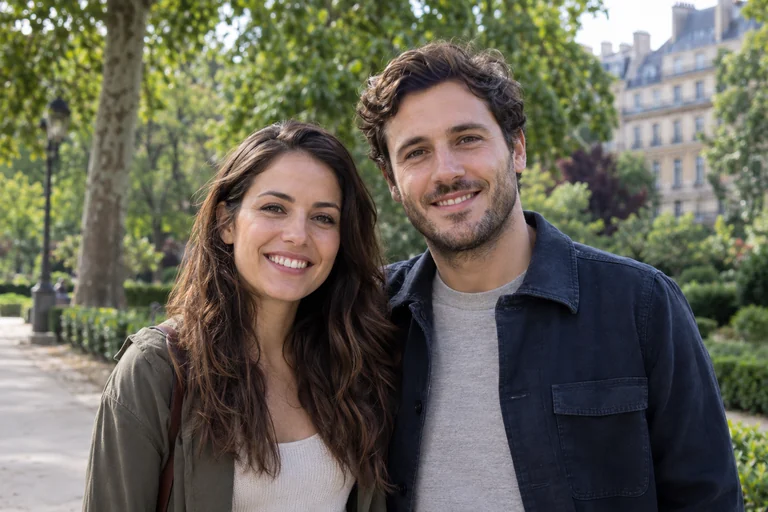
| File | Dimensions | Bytes |
|---|---|---|
| Source WebP | 1536 × 1024 | 124,920 |
| JPG · quality 85% | 1536 × 1024 | 181,193 |
5. Test the exported copy
Download to a new name, reopen the downloaded file and check dimensions, visible detail and byte size. Then try that copy in the actual form. A rejection after all three match may involve other service-specific requirements, a damaged source or a connection problem.
Do not keep repeatedly exporting an already compressed copy. Return to the original for each serious attempt, keep a version that passed inspection, and remove unnecessary personal details from the filename before sending.